documentElementElementElement functions can be customized with set and show rules.
set and show rules.Manages metadata and is used to add a document file to a bundle.
Metadata
The document element is the single source of truth for document metadata. With it, you can specify the document's title, authors, date, etc. in one place. Typically, the element is used with a set rule like this:
#set document(title: [My doc])

Title is _not_ rendered, but
embedded in PDF metadata.
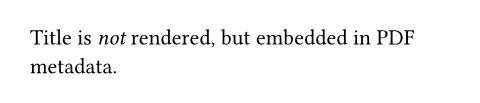
By default, the metadata is embedded into the output, but not visibly
rendered in the document. However, it becomes contextually
available to the full document and can be used by elements and
templates. For instance, the built-in title element automatically picks
up the configured document title:
#set document(title: [My doc])

#title()
Title is now rendered _and_
embedded in PDF metadata.
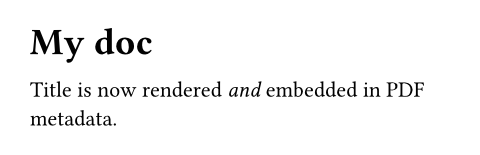
In a similar fashion to the title element, you can also access metadata
yourself using a context expression.
// In the document.
#set document(
  keywords: ("Typst", "Metadata")
)

// Somewhere in your template.
_Keywords:_
#context document.keywords.join(", ")

In single-document export formats, this function is only used with set
rules. Such set rules must only occur at the
top level, not inside of any layout container. You can also explicitly
create a document element, but this is only relevant in bundle
export.
Format-specific considerations
Metadata is embedded into the output to varying extents:
-
PDF export supports the full range of metadata and emits it into the PDF document information dictionary as well as XMP metadata.
-
HTML export only supports the
title,description,author, andkeywordsproperties. Thedateproperty is not supported as the HTML standard has no provision for it. -
SVG and PNG export do not have any metadata support at all.
Documents in bundle export
In bundle export, a document element represents a single file in
the bundle output, in one of Typst's other export formats. When creating a
document, you must provide an output path and some content. Typst will
compile and export the provided content with the appropriate format. By
default, the format is inferred from the file extension of the path you
specified, but you can also configure the format
explicitly.
#document("index.html", title: [Home])[
  #title()
  View #link(<list>)[my famous list].
]

#document("list.html", title: [My Famous List])[
  #title()
  - My
  - Famous
  - List
] <list>
Metadata
Document elements pick up metadata from top-level set document rules
within them. This means that documents written for single-document export
can be used with explicit document elements while properly retaining
metadata.
// Will pick up the title defined in `paper.typ`.
#document("paper.pdf", include "paper.typ")
// paper.typ
#set document(title: [My Paper])
...
Note that document set rules within a document override explicit arguments
passed to the document element.
Moreover, properties configured as explicit arguments to document are made
contextually available:
#document("index.html", title: [My title])[
  // Both of these will pick up `[My title]`
  #title()
  #context document.title
]
ParameterParameterParameters are input values for functions. Specify them in parentheses after the function name.
document(,,,,,,date:,)->pathRequiredRequiredRequired parameters must be specified when calling the function.PositionalPositionalPositional parameters can be set by specifying them in order, omitting the parameter name.
pathThe path in the bundle at which the exported document will be placed.
May contain interior slashes, in which case intermediate directories will be automatically created.
This property is only supported in the bundle target.
Available string values
pdfHigh-fidelity document and graphics format, with focus on exact reproduction in print.
pngRaster format for illustrations and transparent graphics.
svgThe vector graphics format of the web.
htmlThe document format of the web.
Default value: auto
The document's title. This is rendered as the title of the PDF viewer window or the browser tab of the page.
By default, the configured title is not visibly rendered in the
document. You can add the title to the document's contents by using the
the title element. It will automatically pick up the title
configured here.
Adding a title is important for accessibility, as it makes it easier to navigate to your document and identify it among other open documents. When exporting to PDF/UA, a title is required.
While this can be arbitrary content, PDF viewers only support plain text titles, so the conversion might be lossy.
Default value: none
The document's authors.
Default value: ()
The document's description.
Default value: none
The document's keywords.
Default value: ()
The document's creation date.
If this is auto (default), Typst uses the current date and time.
Setting it to none prevents Typst from embedding any creation date
into the PDF metadata.
The year component must be at least zero in order to be embedded into a PDF.
If you want to create byte-by-byte reproducible PDFs, set this to
something other than auto.
Default value: auto